Introduction
Welcome to the world of “note”!
If you are looking for high-quality Japanese content, note is the gold standard. It is one of the most trusted creative platforms in Japan, widely used by professional journalists, industry experts, tech creators, and reputable companies.
When you read content on note, you can be assured of a safe and secure environment. The platform is strictly managed to protect both creators and readers, ensuring that your transactions and personal data are handled with the highest level of security. Whether you are seeking deep-dive technical insights, professional advice, or unique Japanese perspectives, note provides a clean, reliable, and authentic space to learn and grow.
2. Getting Started: How to Create an Account
Creating an account is quick and secure. Follow these 3 simple steps to get started:
1,Visit note.com: Go to note.com.
2,Click “Sign up”: Look for the “会員登録” (Sign up) button in the top right corner.
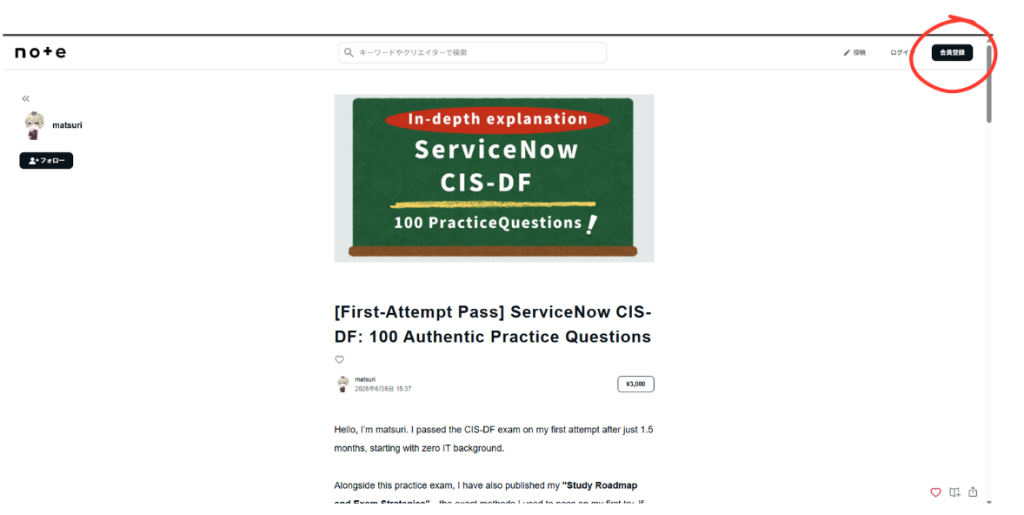
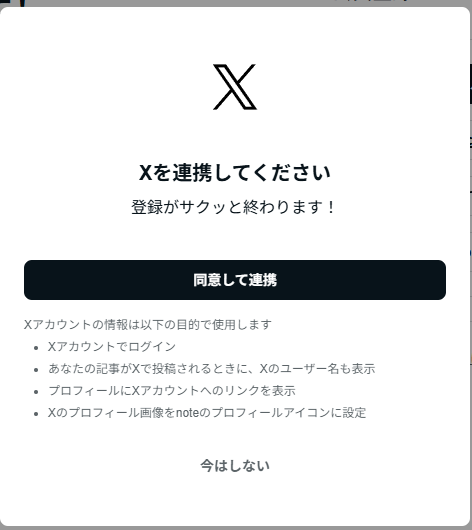
3,Choose your sign-in method: For a seamless experience, you can link your existing Google, Apple, Twitter (X), or Facebook account. This is the fastest way to register without needing to remember a new password.
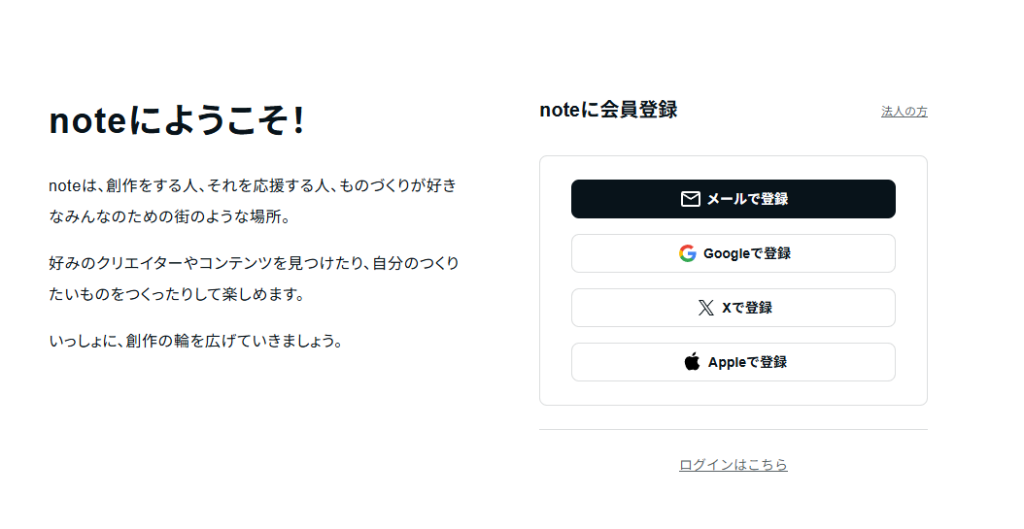
Once you’ve signed up, don’t forget to set your nickname and upload a profile picture to join the community!
When linking your X account, simply click the black ‘Agree and link’ button to proceed.
3. How to Log In and Confirm Your Status
If you have already created an account, here is how to sign in and ensure you are logged in correctly:
1,Visit note.com: Go to note.com.
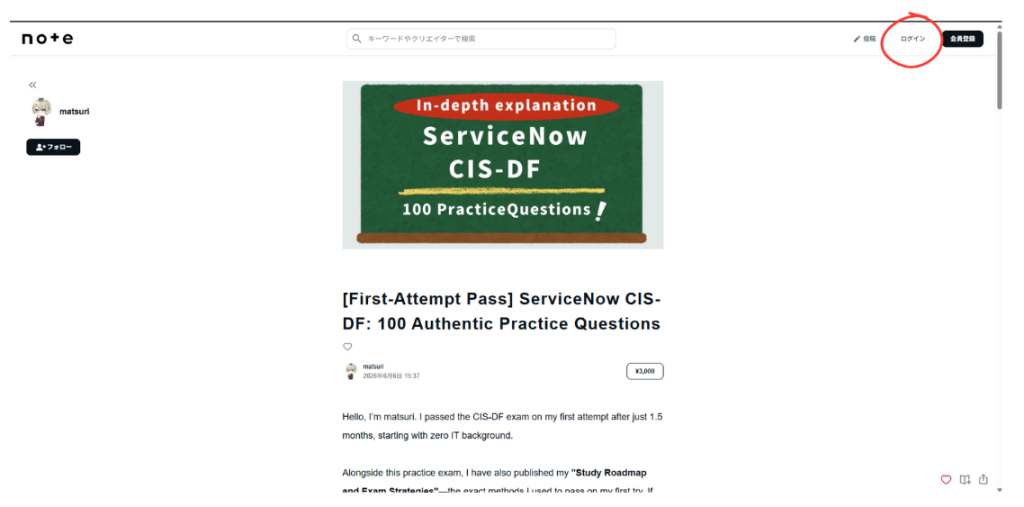
2,Click “Log in”: Look for the “ログイン” (Log in) button in the top right corner.
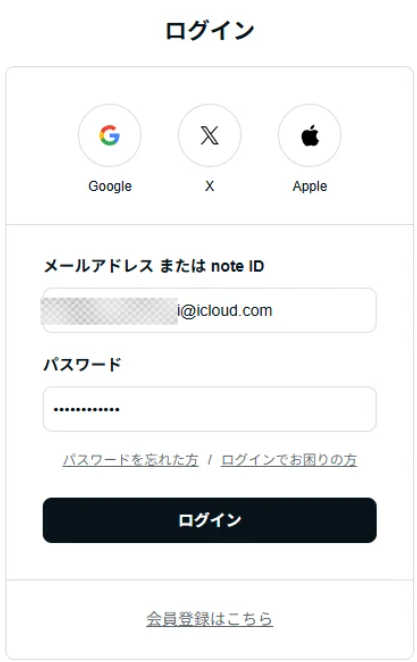
3,Sign in:
Using Email: Alternatively, enter your registered email address(メールアドレス または note ID) and password(パスワード), then click the login button.
Using Social Accounts: Choose the same method you used for registration (Google, Apple, or Twitter/X).
4,Confirm your status: Once you are logged in, check the top right corner of the screen. If you see your profile icon (a circular image), you are successfully logged in!
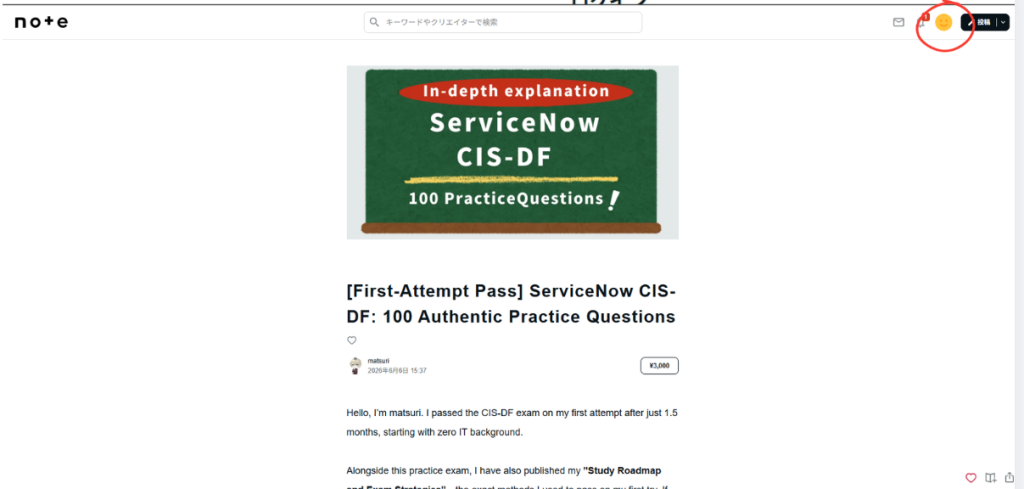
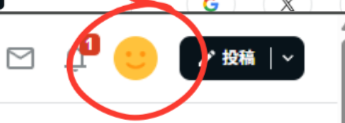
If you see the “Login” or “Sign up” button instead of your profile icon, you are not yet logged in. Simply click “Log in” to get started.
4. How to Purchase Paid Articles
Many creators on note publish premium content—such as technical guides, deep-dive industry reports, and exclusive professional advice—through paid articles. Here is how you can support your favorite creators and access their work:
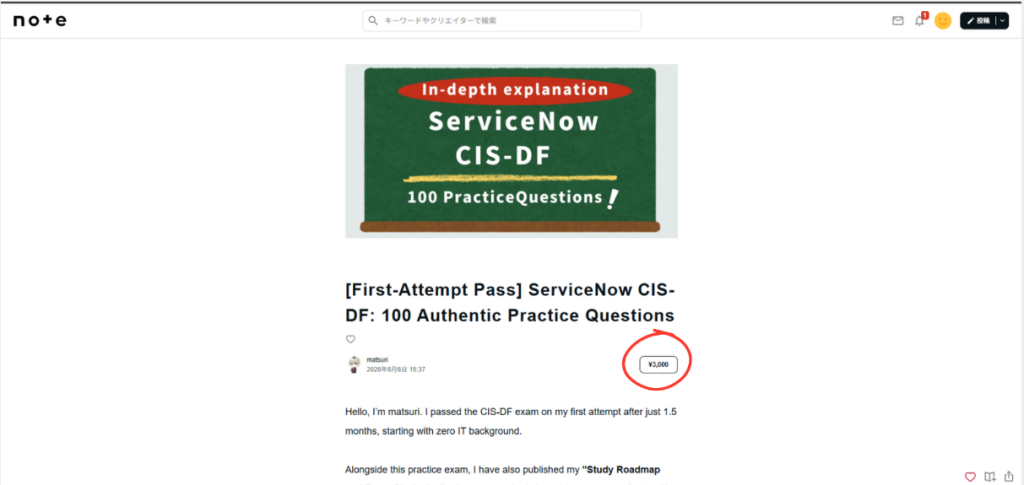
1,Find the article: Once you find the article you want to read, scroll down to the bottom of the free preview section.
2,Click the price button: You will see a button displaying the article’s price (e.g., “¥3,000”). Click this button to proceed to payment as shown in
※The amounts are displayed in Japanese.

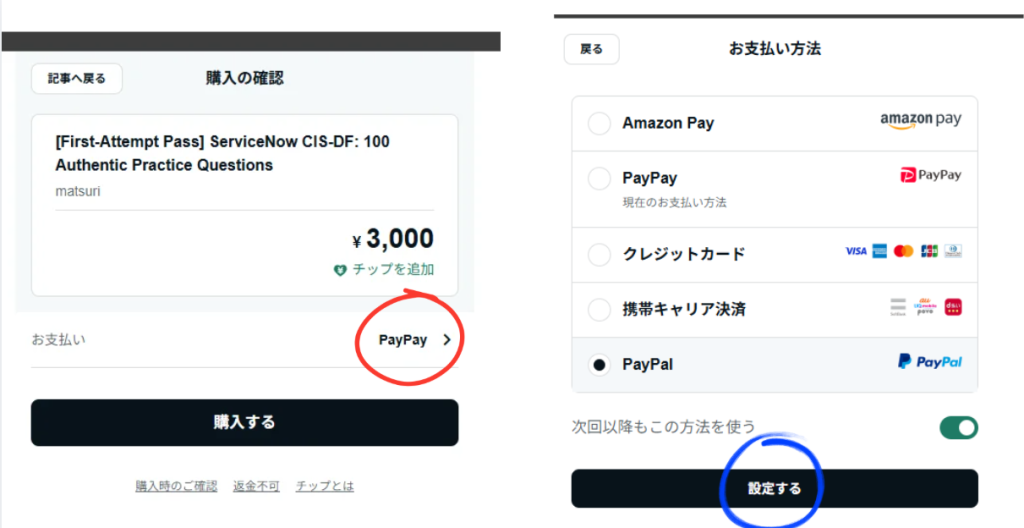
3,Select your payment method: Depending on your screen, one of these payment windows will appear. If you see the screen on the left, click the area highlighted in red to open the selection screen on the right. From there, select your preferred payment method and click the “設定する” (Confirm/Set) button(the area highlighted in blue) at the bottom.
- Credit Card (Visa, Mastercard, JCB, American Express, Diners Club)
- PayPay (Popular digital payment service in Japan)
- Mobile Carrier Billing (Available for major Japanese mobile carriers)
- Rakuten Pay
- Amazon Pay
Once you have selected your method, click the “設定する” (Set/Confirm) button at the bottom to proceed.
Important Note for International Users: Please be aware that some international credit cards may not be accepted on the platform. For a smoother and more reliable transaction, we highly recommend using PayPal or Amazon Pay if available.
4,Confirm: Once the transaction is successful, the entire content of the article will be instantly unlocked for you.
5. How to View Your Purchased Content
Once you have successfully purchased an article, it is permanently saved to your account. You can revisit and read your purchased content anytime by following these steps:
1,Log in: Ensure you are signed in to your note account.
2,Access your profile: Click your profile icon in the top right corner of the screen.
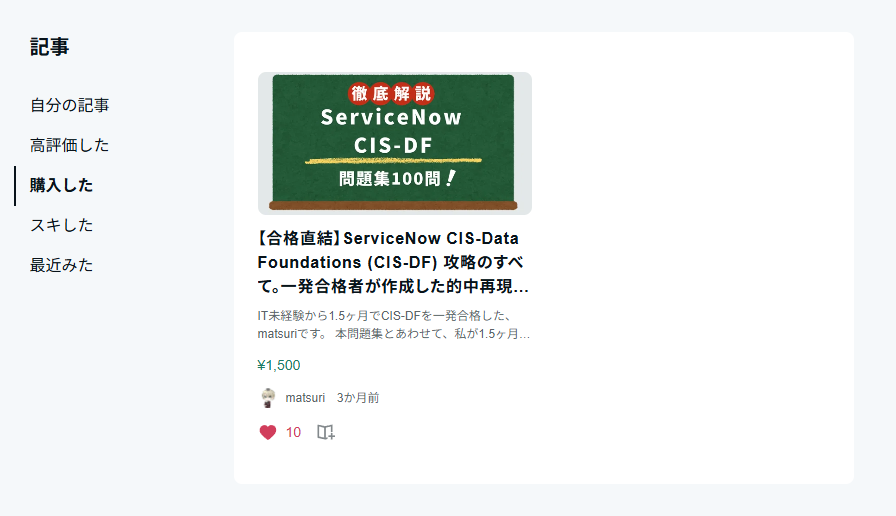
3,Open “Purchased articles”: Select “購入した” (Purchased articles) from the dropdown menu.
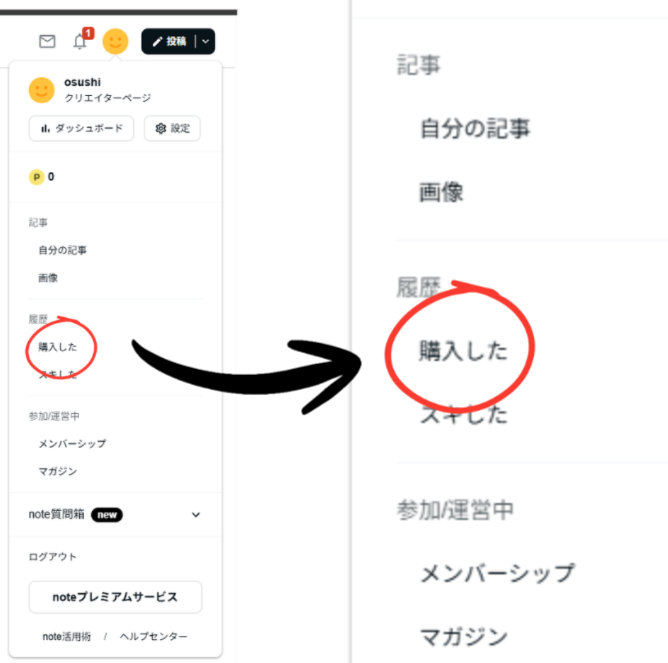
4,Enjoy: You will see a list of all the articles you have purchased. Simply click on the title of the article you want to read to open it.
6. Troubleshooting & Helpful Tips
If you run into any issues or have questions while using note, here are a few tips:
- Browser Translation: note is a Japanese platform, so some parts may be in Japanese. If you are using Google Chrome or Microsoft Edge, you can right-click anywhere on the page and select “Translate to English” to read the content comfortably.
- Payment Issues: If your international credit card is not accepted, check if it supports 3D Secure or consider using a different payment method if available.
- Support & Help: If you have technical issues, you can always visit the note Help Center. Even if it is in Japanese, you can translate the page to find solutions to common problems.
- Connect with Creators: Don’t be shy! Click the “スキ” (Like) heart icon to show your appreciation, or use the “フォロー” (Follow) button to keep up with your favorite creators’ latest insights.
コメント